Meld on mac

In my previous life when Ubuntu was my only work station, both at the office and home, I used to have this cool setup: we committed our work (Java project) to a remote SVN repo. Every time someone did a commit, Hudson sent an email to everyone informing them of this commit, and then it did a build. And then Hudson sent email to everyone informing them whether the last commit built successfully or not.
Our email client was Evolution back then. Evolution had a very nifty diff plugin (emails from Hudson always content diff file), with code indentation and coloring. So when someone committed, or something broke, we could quickly see what was committed or what was going wrong (and who did it!).

Then we all moved to Mac workstations.... to start working on iOS projects. It was a pain to get Evolution and its nifty diff plugin to work on Mac. So we switched to Mac's native Mail app.

And we used an additional app to view the diff, which is meld. But this is still less than ideal, since now I had to switch to meld to view the diff. In Evolution, the diff was embedded in the mail, right below the email message, beautified by the diff plugin.

Recently I need to install meld on my private Mac. This was not so smooth (I don`t remember having problems back then). Anyway, here`s how to install meld on Mac via Macports:

$> sudo port install meld

Run meld. And then you may or may not get the following error:


File "/opt/local/bin/meld", line 75, in 

locale.setlocale(locale.LC_ALL,'')

File "/opt/local/Library/Frameworks/Python.framework/Versions/2.7/lib/python2.7/locale.py", line 539, in setlocale

return _setlocale(category, locale)

locale.Error: unsupported locale setting
If you do, do this:

export LANG=C; export LC_ALL=C
And then, if you get the following error:

glib.GError: Failed to contact configuration server; some possible causes are that you need to enable TCP/IP networking for ORBit, or you have stale NFS locks due to a system crash. See http://projects.gnome.org/gconf/ for information. (Details -  1: Failed to get connection to session: Not enough memory)
Do this:
$> sudo port notes dbus
$> sudo launchctl load -w /Library/LaunchDaemons/org.freedesktop.dbus-system.plist
$> launchctl load -w /Library/LaunchAgents/org.freedesktop.dbus-session.plist

From:
http://stackoverflow.com/questions/11892957/meld-on-os-x-10-7-doesnt-work
http://computercamp.cdwilson.us/running-meld-on-osx-107-lion

Smartfren errorId 702

Error 702: A connection to the remote computer could not be established…

How to solve:

  • Cabut usb modem anda
  • Buka command prompt (cmd) : Start > Run > Ketik CMD > Enter
  • Masukan perintah “netsh int ip reset c:\resetlog.txt” (tanpa petik) > enter
  • Restart komputer/laptop anda
  • Coba buat konek lagi..

Source:


Bean instances from Spring context must be cast into interface, not implementing class

So I have interface Thinker, and a class Volunteer implementing that interface.

I have a bean like this in my context.xml:


<bean id="thinker" class="springidol.classes.Volunteer"></bean>

And in the Java code:

Thinker vol = (Volunteer)context.getBean("thinker");

I got the following exception:

Exception in thread "main" java.lang.ClassCastException: com.sun.proxy.$Proxy1 cannot be cast to springidol.classes.Volunteer

It turns out that I must cast all beans instantiated from context into its interface, not its implementing class. The following Java code is correct:

Thinker vol = (Thinker)context.getBean("thinker");

Getting Apache Tomcat run via Eclipse to produce logs

Click on Servers tab, double click on the server instance to open it up in workspace. Then click Open Launch Configuration. Click on Arguments tab. You need to add the following two arguments:

-Djava.util.logging.manager=org.apache.juli.ClassLoaderLogManager -Djava.util.logging.config.file="/Users/firman/Documents/learnjava/apache-tomcat-7.0.40/conf/logging.properties"

Compile Freeswitch for Mac

To successfully compile and run freeswitch on Mac OS X Lion, the steps listed on http://wiki.freeswitch.org/wiki/Installation_on_OS_X_10.8_Mountain_Lion needs some modifications.

First, make sure you have gcc (by installing XCode) and GNU make tools (by installing thru mac ports or brew).

Then pull the freeswitch source from its git repo:


git clone git://git.freeswitch.org/freeswitch.git


Then get into the directory where you pulled freeswitch. Then do:

bootstrap.sh

Then:

configure

I got trouble here because the freeswitch configure script will fail to find the libjpeg even after i installed it thru brew or macports.

So I downloaded the libjpeg installed from http://ethan.tira-thompson.com/Mac_OS_X_Ports.html and installed libjpeg from it. The freeswitch configure script recognized it.

But then another problem occured. The configure script failed because many warnings are treated as errors.

So I opened the configure script and deleted the following:


  if test "x$SWITCH_AM_CFLAGS" = "x"; then
    test "x$silent" != "xyes" && echo "  setting SWITCH_AM_CFLAGS to \"-Werror\""
    SWITCH_AM_CFLAGS="-Werror"
  else
    apr_addto_bugger="-Werror"
    for i in $apr_addto_bugger; do
      apr_addto_duplicate="0"
      for j in $SWITCH_AM_CFLAGS; do
        if test "x$i" = "x$j"; then
          apr_addto_duplicate="1"
          break
        fi
      done
      if test $apr_addto_duplicate = "0"; then
        test "x$silent" != "xyes" && echo "  adding \"$i\" to SWITCH_AM_CFLAGS"
        SWITCH_AM_CFLAGS="$SWITCH_AM_CFLAGS $i"
      fi
    done
  fi

I ran the configure script again this time successfully. Then, sudo make, sudo make install. This will install the freeswitch into /usr/local/freeswitch.


make cd-sounds-install cd-moh-install


Then, freeswitch is ready for testing. Username 1000 until 1009 are automatically created with password 1234.

Integrating Level Helper to hybrid project iOS+Android using Cocos2d-x

The wonder of Cocos2dx is: it's written in C++. And because it's written in C++, it can run on any system that supports C++. That means all systems, except Windows phone (as of this writing).

To integrate Level Helper to hybrid iOS Android Cocos2d-x project (common C++ codes for both iOS and Android), first create hybrid project as is explained in this post: http://growingshoot.blogspot.com/2013/04/cocos2dx-hybrid-project-ios-and-android.html

>> The trick to integrate Level Helper <<

Most Android does not support pvr.ccz, while most (or all?) iPhones support it. I want pvr.ccz for iPhone project, and plain PNG for Android project. pvr.ccz for iPhone project is even more compelling because most of the time, the PNG generated by SpriteHelper causes pngcrush caught libpng error  on compile time, while the same PNG file does not cause trouble for Android.

To achieve that,  I create the Sprite Helper project, and save the pvr.ccz version inside {PROJECT_NAME}/Resources directory and save the PNG version inside {PROJECT_NAME}/android/assets directory. Then, I create the Level Helper project inside {PROJECT_NAME}/Resources directory.

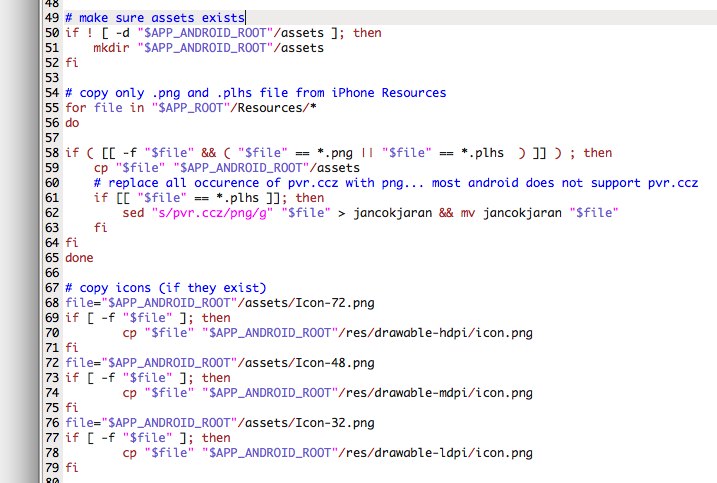
The {PROJECT_NAME}/android/build_native.sh needs modification so it does not delete the assets directory and replace it with contents of Resources directory. It also must copy only PNG and plhs (project file of Level Helper) from inside Resources directory into the assets directory. When copying plhs file, it must replace all occurences of pvr.ccz strings with png strings.

Following screenshots, respectively: saving Sprite Sheet for iPhone project (pvr.ccz, cocos2d-x resource handling, hd suffix set, 2x hd suffix empty), saving Sprite Sheet for Android project (png, cocos2d-x resource handling, hd suffix empty, 2x hd suffix empty), new build_native.sh file, old build_native.sh file.


New build_native.sh below and old build_native.sh above:


2. Do not forget to set content scale factor to 2 in App Delegate!     pDirector->setContentScaleFactor(2); You must also tell iPhone to look inside hd directory for files when in Retina mode: CCFileUtils::sharedFileUtils()->setResourceDirectory("hd"); This must be done before loading level. Can not be done in App Delegate!

3. C++ codes generated by Level Helper must be referenced in the {Project name}/android/jni/Android.mk file (LOCAL_SRC_FILES for the cpp files and LOCAL_C_INCLUDES for the headers). The following are my Android.mk file and my project structure (I put LevelHelper dir, which is codes generated by LevelHelper, under Classes dir).


Cocos2dx hybrid project iOS and Android

So I'm porting a game from iOS to Android. It's a Cocos2d game. Naturally I look to implementing the Android port using Cocos2dX, since it's a C++ port of Cocos2d.
I found many tutorials online of how to create a shared project for Android and iOS. By "shared", I mean the C++ code. The C++ code is common to iOS and Android. With some Objective-C code binding for the iOS project and some Java code for the Android project.
But the Objective-C and Java codes are small and do not change.
The ones that change is the C++ codes, shared by iOS and Android project.
Among all tutorials online, I find this one most concise and easy to follow: http://www.bold-it.com/ios/cocos2d-x-box2d-iosandroid-hybrid-tutorial/

It's just that the tutorial is written for Cocos2d-2.0-x-2.0.2. The most current version as of this writing is Cocos2d-2.0-x-2.0.4.
Only minor version change but I had to make some extra adjustment to compile and run both project successfully.

So, follow the steps in the above tutorial:
1. Download Cocos2dx.
2. Install the XCode template: ./install-templates-xcode.sh
3. Create XCode project for iOS.
4. Edit the create-android-project.sh file before creating the Android project. Set the NDK_ROOT_LOCAL and ANDROID_SDK_ROOT_LOCAL variables.
5. Execute create-android-project.sh --box2d to create Android box2D project.
6. Make sure it compiles by executing ./build_native.sh
7. Move the necessary Android files:

  • Move the /testgame/proj.android folder to the iphone project folder, next to ios. Rename it android.
  • Copy the /external/Box2D folder into /libs/, replace what is there.
  • Copy the /cocos2dx folder into /libs/, replace what is there.
  • Copy the /CocosDenshion/android folder into /libs/CocosDenshion/
  • Copy the /extensions folder to /libs/, replace what is there.
8. In /android/build_native.sh, change line 40: COCOS2DX_ROOT="$DIR/../libs"
9. Next, in android/jni/Android.mk, add a LOCAL_C_INCLUDES path to Box2D and change “$(call import-module,external/Box2D)” to “$(call import-module,Box2D)”. To be able to see logs in Logcat, add LOCAL_CFLAGS += -DCOCOS2D_DEBUG=1. Delete this line or set the value to 0 for production to improve efficiency.
This is how my Android.mk looks like:

After the log is enabled, you can see the log output from console by typing: adb logcat | grep D/cocos2d-x. Don't forget to use CCLOG to print debugging messages.
10. Update android.library.reference.1 in android/project.properties:

# Project target.
target=android-10
android.library.reference.1=../libs/cocos2dx/platform/android/java
11. Define sdk.dir in libs/cocos2dx/platform/android/java/ant.properties as such:
sdk.dir=/Users/firman/Documents/android-sdk-macosx
12. Edit the target in libs/cocos2dx/platform/android/java/project.properties to match the target defined in android/project.properties:
target=android-10

Done! Now you can run the iOS project from inside XCode. As for the Android project:


./build_native.sh clean
./build_native.sh
ant debug
adb install -r bin/testgame-debug.apk
adb shell am start -a android.intent.action.MAIN -n com.boldit.testgame/.testgame